
A simple way to make a HDR
I am going a bit technical this time. There are as many know a technique called HDR, High Dynamic Range. I have never explores this before as it most of the time means you have to use a tripod and produce at least 2 different images one with the sky correctly exposed and one with the foreground correctly expose. That is at least the theory.
What HDR does is to produce a picture with a higher contrast than the digital cameras of today can do. You will find detail in both the lightest and darkest areas and this is sometimes what you want and that is why I have started to explore a simpler way of doing this from just one exposure.
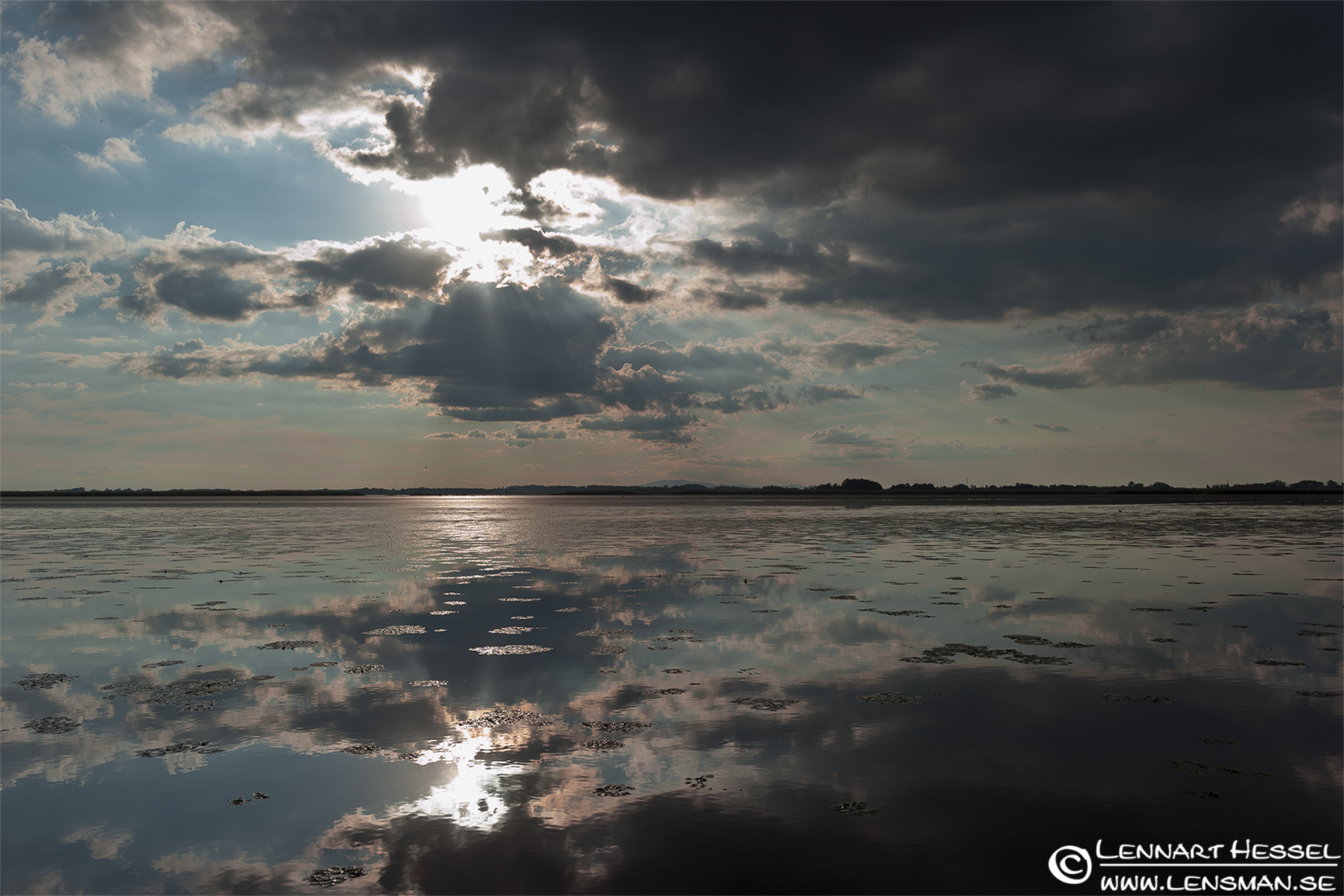
The picture you see here is my first try of doing something that resembles a HDR picture. I do all my work in Camera RAW and Photoshop and there is a little trick to do a HDR from just one picture.
I took this picture while I was out boating on Lake Tisza in Hungary last week. I set the exposure to be better for the sky but still I had some blown out parts. I am not sure what way will be the best but I think I´ll start my HDR explorations by doing the exposure for the brighter parts of the picture.
So what I have done is to make two different interpretations of the same photo and then merged them in Photoshop. How can you do this you might ask?
This is the way I did it.
Firstly I did some of the basic stuff in Camera RAW like cropping the picture and making some lens correction that will be the same for both interpretations. Then I saved this and use it as the foundation for the rest of my work. Next step is to set the exposure for the foreground, in my case the water. When I was done I open the picture as a smart object in Photoshop, just hold shift and click “Open object” in Camera RAW. The picture will open in Photoshop and now you want to make a copy of the layer/object. This I do with “New Smart Object via Copy”, you will find it in the Layer menu. Now you have 2 layers with the same information and the smart thing is that if you double click the new layer you will be brought back to Camera RAW and that means you can make the exposure for the sky. When you feel ready you just click “Ok” and you´ll soon be back in Photoshop. Now you can see a difference in both layers due to the different interpretations that you´ve done.
Next step is the tricky part. I rearrange the layers so that the first layer/object is on top that is the exposure for the correct foreground. I then “Add a layer mask” that will be used to blend the exposures. To blend I use the “Gradient tool” with “neutral density” and just drag the cursor from top to bottom of the part in the second exposure that I want to blend into the picture.
I will try to do some more work with this to see what it can bring into my portfolio. I find the technique interesting and it can hopefully add a extra element to my landscape photos.
You might also like


Leave a reply